![GS Logo-GS platform.png]](https://support.govspend.com/hs-fs/hubfs/GS%20Logo-GS%20platform.png?height=25&name=GS%20Logo-GS%20platform.png)
Navigate to a section on the page using the table of contents:
Notebook Chat
Once you have GovSpend data added to projects in your notebook, you can use the chat feature to ask questions and gain insights for a given project.

- Use the project dropdown to select a project
- Note: We recommend expanding the chat panel via the left arrow icon at the top for an easier view of your prompts and responses.


- Use the chat input to ask questions about the data in the selected project. Simply type in a question and hit "enter" to submit your question.
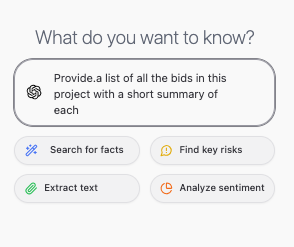
- You can ask questions across all of the data within a project
- You can also ask questions about a specific record or even a specific document
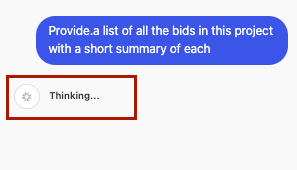
- Once you submit a question, it will start working to generate a response. Note that the more data and/or documents you have in your project, the longer it may take to generate a response. You'll be able to see status as it processes your request.
Tips & Tricks for Prompting
- Chat across entire project: To ask questions across all data in your project, we recommend specifically prompting to review all the data in your project, for example:
- "Summarize all the bids across this entire project"
- "Provide a list of all the X in this project, with a short summary of each"
- "Review all the meetings in this project and summarize any discussions around security cameras"
- The response generated should provide information using context from all records in your project

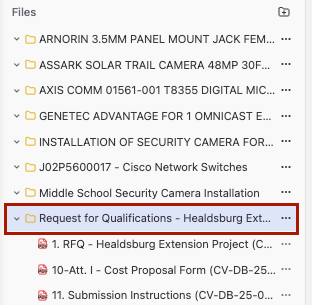
- Chat with one specific record: Once you've gotten an overview of the data in your project, you may want to drill into specific records. To do that, select the record from the list on the left and be specific with your question:
- Have the record selected:
-
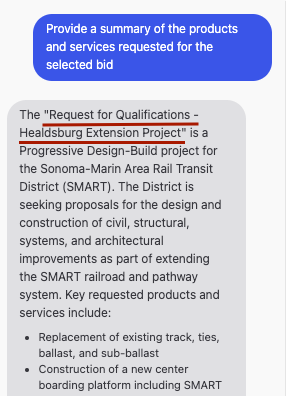
- Ask a question and reference your selection: "Provide a summary of the products and services requested for the selected bid"
- The response will be specific to your selected record
- Chat with one specific document: If you need to get even more granular, you can also ask questions about a specific document. To do that, select the document from the list in the left panel and ask a question that references that document.
- Select the document you want to chat with
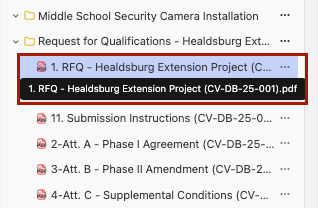
- Ask a question that references that document: "Provide a summary of the selected document" or "Provide a summary of this document"
- You'll see that as it processes the question it is specifically looking within the selected document
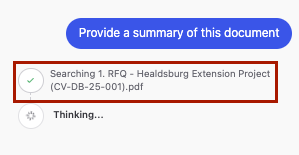
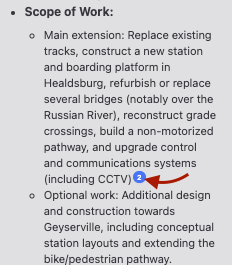
- The response will be specific to your selected document. You'll also notice that citations will be available that take you to the page or section of the document that includes the context for that portion of the response.

-
- Simply click any of the blue citation bubbles to navigate to the associated context in the document
AI Chat & Prompt Copy Functionality
Copy your entire chat thread, including questions and answers, within our AI Chat/Prompt feature. Copy single responses OR your entire thread to pass along to other team members or save for future reference.
How to Find It:
- Navigate to the Bids, Contracts or Meetings modules
- Open up a detail page, for example a bid or a meeting
- Click the purple “spark” icon in the top right to open up the AI chat panel

- Start a new chat or open a chat from the chat history
- Click the 3 dots at the top right of the panel
- Select “Copy entire chat”

- Paste in an email, document, or wherever you are looking to have it available
- Note that you still have access to the copy functionality for a single response using the copy icon below any given response
