---
title: AI Search
description: Feature overview and user guide for GovSpend's AI Search
---
[Skip to content](https://support.govspend.com/ai-search#main-content)
English
Show submenu for translations
[![GS Logo-GS platform.png\]](https://support.govspend.com/hs-fs/hubfs/GS%20Logo-GS%20platform.png?height=25&name=GS%20Logo-GS%20platform.png)](https://support.govspend.com/?hsLang=en)
- [Home](https://support.govspend.com/)
- [Email Support](mailto:support@govspend.com)
- [Product Health Status](https://support.govspend.com/product-health-status)
- [What's New](https://support.govspend.com/)
Show submenu for What's New
- [New User Onboarding](https://support.govspend.com/govspend-onboarding-journey)
- [Releases & Updates](https://support.govspend.com/releases-updates)
- [Newsletters](https://support.govspend.com/newsletter-archive)
- [Sales Training Videos](https://app.govspend.com/trainingVideos)
Open main navigation
Close main navigation
- [Home](https://support.govspend.com/)
- [Email Support](mailto:support@govspend.com)
- [Product Health Status](https://support.govspend.com/product-health-status)
- [What's New](https://support.govspend.com/)
Show submenu for What's New
- [New User Onboarding](https://support.govspend.com/govspend-onboarding-journey)
- [Releases & Updates](https://support.govspend.com/releases-updates)
- [Newsletters](https://support.govspend.com/newsletter-archive)
- [Sales Training Videos](https://app.govspend.com/trainingVideos)
- English
Show submenu for translations
- [Log into GovSpend](https://app.govspend.com/)
[Log into GovSpend](https://app.govspend.com/)
Skip the browsing—search for the fastest, most relevant results.
- There are no suggestions because the search field is empty.
1. [GovSpend Help Center](https://support.govspend.com/?hsLang=en)
2. [The Lab](https://support.govspend.com/the-lab?hsLang=en)
3. [\[Beta\] AI Search](https://support.govspend.com/the-lab?hsLang=en#beta-ai-search)
# AI Search
## Learn how to use GovSpend's new AI Search
We've introduced a powerful new way to to uncover signals from GovSpend's vast public sector database. Powered by AI (and specifically an MCP server we've built to allow AI agents to search across GovSpend), you can now use simple, plain text prompts to search across all of GovSpend's modules and get results back in a clean, easy to digest chat interface.
Looking for relevant open bids for cybersecurity software in your territory? Simply type "Show me some great opportunities for cybersecurity in New York and Pennsylvania."
Want to know if Agencies are talking about a new LMS provider for the upcoming school year? Just say "Show me Agency discussions related to upcoming LMS system purchases." You can also ask it to "include a 1-2 sentence summary of the discussion and any sentiment around it."
You can even use the new AI Search to **access information on the open web** to pull in recent grant information, news stories, and hiring announcements. Best of all, you can still use all of GovSpend's existing functionality for deeper research once you've found the best signals or leads to pursue.
**Coming Soon:** stay tuned for additional enhancements to AI Search coming this year, including the ability to pull a detailed user profile into your prompts automatically, making it even easier to surface insights in an instant.
### Where to find it:
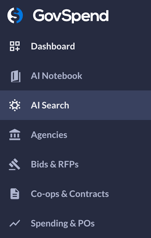
Starting today, you can access the new AI Search at the top the left nav menu, right under [AI Notebook](https://support.govspend.com/ai-notebook?hsLang=en). It's available to anyone with the GovSpend AI permission, which also gives you access to our [AI Chat & Prompts](https://support.govspend.com/ai-chat-in-bids-meetings-contracts?hsLang=en) functionality.
### How it works:
- To get started, click on AI Search in the GovSpend left navigation menu:
- From there, you'll be taken to the AI Search page:
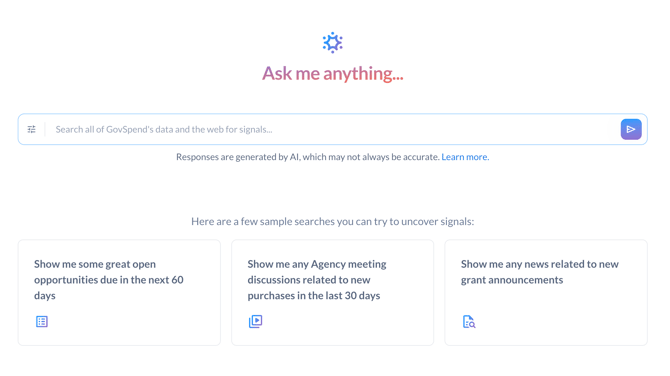
- To get started, simply type in a search prompt you'd like to see in GovSpend, like "Show me expiring contracts for cybersecurity services in New York and Pennsylvania"
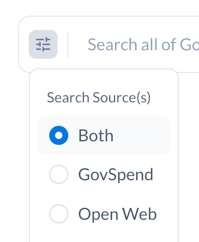
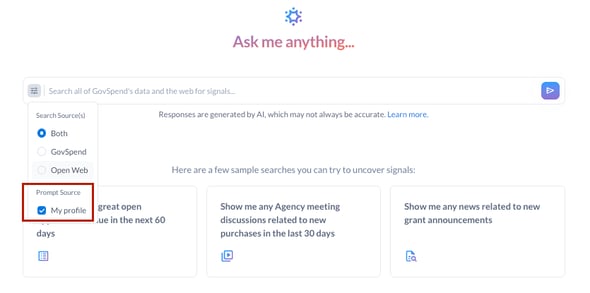
- By default, AI Search will look for results from both GovSpend and the open web, with the priority being to show you results from GovSpend. You can change this by clicking the filter icon to the left of the search and changing the Search Source:
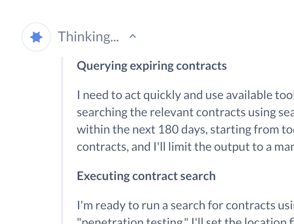
- Once you've started a search, the AI Agent will get to work!
- By default, AI Search is connected to your profile to give you more refined responses. If you want to toggle it off for more generic responses, follow these steps:
- Click the menu in the left of the chat input to view the “My Profile” option
- Click the check box to toggle it off. Please note that if you uncheck "My Profile," that setting will persist until you turn it back on again,
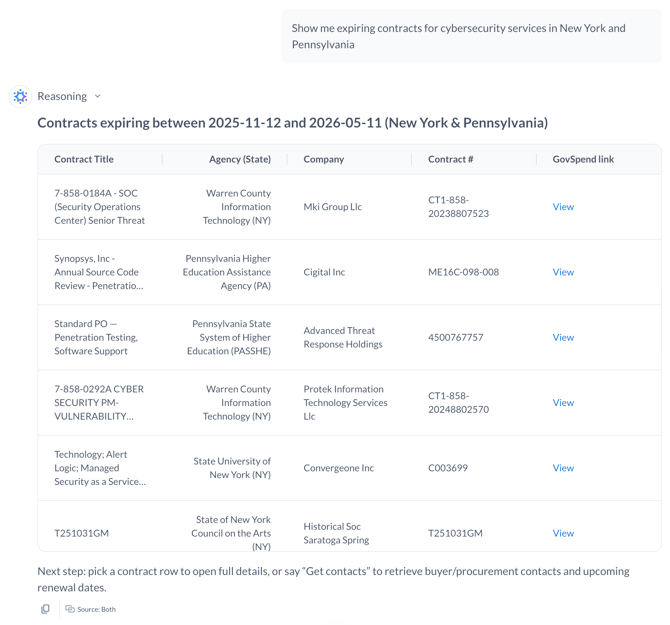
- Once it's done, you'll be presented with a table of the top results our GovSpend AI agent was able to find, along with links to each record if you want to drill down further. From there, you can ask follow up questions, like "Add 1-2 sentences about why you think this is a good fit" or "create a plan of attack for the top three results"
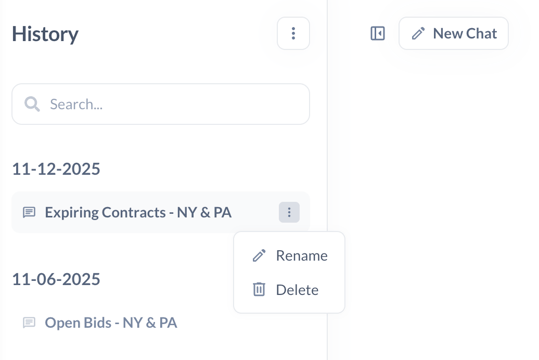
- All of your chat history is saved if you want to go back and review it later, simply select the chat record from the History menu on the left. You can also rename or delete older chats, and start a fresh search with the "New Chat" button.
### Saved Search Workflows
- Navigate to AI Search
- Input prompts related to saved searches, for example:
- Find and list my bid saved searches
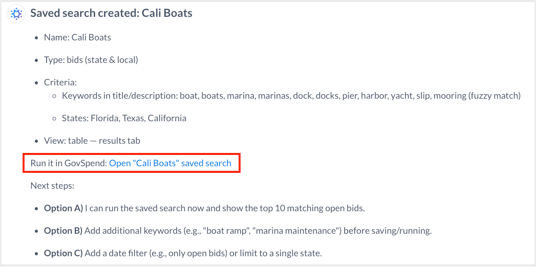
- Create a saved search for bids that mention learning management systems in Virginia, Maryland, and North Carolina
- Features Supported:
- List/find your saved searches
- Run a saved search, including temporary criteria modifications
- Create a saved search
- Export a saved search (export credits are taken into consideration with any export)
### Let us know what you think!
We're excited to release this new feature, and there's much more to come in Q4 '25 and into '26 and we continue to develop new AI powered enhancements that make GovSpend more powerful and easier to use. In the meantime, don't hesitate to reach out to reach out to your dedicated Relationship Manager or to [support@govspend.com](mailto:support@govspend.com) with any thoughts or feedback on this or any of our recent enhancements.
- [Getting Started](https://support.govspend.com/getting-started?hsLang=en#main-content)
- [New User Onboarding](https://support.govspend.com/getting-started?hsLang=en#new-user-onboarding)
- [Free Trial Guides](https://support.govspend.com/free-trial-guides?hsLang=en)
- [The Lab](https://support.govspend.com/the-lab?hsLang=en#main-content)
- [\[Concept & Design\] Potential Upcoming Features](https://support.govspend.com/the-lab?hsLang=en#concept-design-potential-upcoming-features)
- [\[Beta\] AI Search](https://support.govspend.com/the-lab?hsLang=en#beta-ai-search)
- [\[Beta\] GovSpend Slack App](https://support.govspend.com/the-lab?hsLang=en#beta-govspend-slack-app)
- [Searching & Filtering](https://support.govspend.com/searching-filtering?hsLang=en#main-content)
- [General Search](https://support.govspend.com/searching-filtering?hsLang=en#general-search)
- [Module-Specific Search](https://support.govspend.com/searching-filtering?hsLang=en#module-specific-search)
- [Workflow Tips](https://support.govspend.com/searching-filtering?hsLang=en#workflow-tips)
- [AI & Automation](https://support.govspend.com/ai-automation?hsLang=en#main-content)
- [AI Access Points](https://support.govspend.com/ai-automation?hsLang=en#ai-access-points)
- [Opportunities Module](https://support.govspend.com/ai-automation?hsLang=en#opportunities-module)
- [MCP (Model Context Protocol) Server](https://support.govspend.com/ai-automation?hsLang=en#mcp-model-context-protocol-server)
- [AI Prompts & Chat](https://support.govspend.com/ai-automation?hsLang=en#ai-prompts-chat)
- [AI Notebook](https://support.govspend.com/ai-automation?hsLang=en#ai-notebook)
- [Integrations & Add-Ons](https://support.govspend.com/integrations-add-ons?hsLang=en#main-content)
- [\[CRM Integration\] Introduction](https://support.govspend.com/integrations-add-ons?hsLang=en#crm-integration-introduction)
- [\[CRM Integration\] Setup: Tech Onboarding](https://support.govspend.com/integrations-add-ons?hsLang=en#crm-integration-setup-tech-onboarding)
- [\[CRM Integration\] Quick Start Guide](https://support.govspend.com/integrations-add-ons?hsLang=en#crm-integration-quick-start-guide)
- [\[CRM Integration\] Additional Features](https://support.govspend.com/integrations-add-ons?hsLang=en#crm-integration-additional-features)
- [Other Integrations](https://support.govspend.com/integrations-add-ons?hsLang=en#other-integrations)
- [Add-Ons](https://support.govspend.com/integrations-add-ons?hsLang=en#add-ons)
- [Training Webinars](https://support.govspend.com/training-webinars?hsLang=en#main-content)
- [Platform Training](https://support.govspend.com/training-webinars?hsLang=en#platform-training)
- [Platform Strategy](https://support.govspend.com/training-webinars?hsLang=en#platform-strategy)
- [Webinar Series | Beyond the Bid: Industry Insights That Win](https://support.govspend.com/training-webinars?hsLang=en#webinar-series-beyond-the-bid-industry-insights-that-win)
- [Report Templates](https://support.govspend.com/report-templates?hsLang=en)
- [Releases & Updates](https://support.govspend.com/releases-updates?hsLang=en#main-content)
- [2026 Product Enhancements](https://support.govspend.com/releases-updates?hsLang=en#2026-product-enhancements)
- [2025 Product Enhancements](https://support.govspend.com/releases-updates?hsLang=en#2025-product-enhancements)
- [2024 Product Enhancements](https://support.govspend.com/releases-updates?hsLang=en#2024-product-enhancements)
- [2023 Product Enhancements](https://support.govspend.com/releases-updates?hsLang=en#2023-product-enhancements)
- [Newsletters](https://support.govspend.com/releases-updates?hsLang=en#newsletters)
- [Data Overviews](https://support.govspend.com/data-overviews?hsLang=en)
- [Quotes & RFQs](https://support.govspend.com/quotes-rfqs?hsLang=en#main-content)
- [For Companies](https://support.govspend.com/quotes-rfqs?hsLang=en#for-companies)
- [For Agencies](https://support.govspend.com/quotes-rfqs?hsLang=en#for-agencies)
- [Technical Support](https://support.govspend.com/technical-support?hsLang=en)
- [Agency Launchpad](https://support.govspend.com/agency-launchpad?hsLang=en)
- [GovSpend Federal](https://support.govspend.com/govspend-federal?hsLang=en#main-content)
- [Introduction](https://support.govspend.com/govspend-federal?hsLang=en#introduction)
- [Search Modules](https://support.govspend.com/govspend-federal?hsLang=en#search-modules)
- [Opportunities](https://support.govspend.com/govspend-federal?hsLang=en#opportunities)
[](https://support.govspend.com?hsLang=en)
[Privacy](https://govspend.com/privacy/) | [Terms](https://govspend.com/terms/)
Copyright © 2025 GovSpend