![GS Logo-GS platform.png]](https://support.govspend.com/hs-fs/hubfs/GS%20Logo-GS%20platform.png?height=25&name=GS%20Logo-GS%20platform.png)
Here is everything you need to know to get started.
Step 1: Find a Great Opportunity
Use GovSpend exactly how you normally do! Run your searches, dig into the data, and find the records you want to action.
Depending on what your Admin configured for your team, you might be looking at:
- Bids you want to win
- Contacts you want to call
- Contracts or Agency Meetings you want to research
Step 2: Click "Add to CRM"
When you find a record you want to send to your CRM, simply open the record details page.
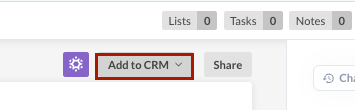
In the top action bar, click the Add to CRM button.
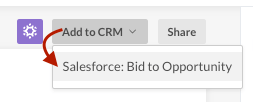
Select how you want to push that record to your CRM (typically you'll see one option unless your Admin has configured multiple mappings for a given GovSpend record).
Note: If you don't see the "Add to CRM" button on a specific type of record (like a Spending Line Item), it just means your Admin hasn't turned the integration on for that specific module yet!
Step 3: Work from Your CRM!
That’s it! Behind the scenes, GovSpend instantly packages up the data from that record and pushes it straight into your CRM.
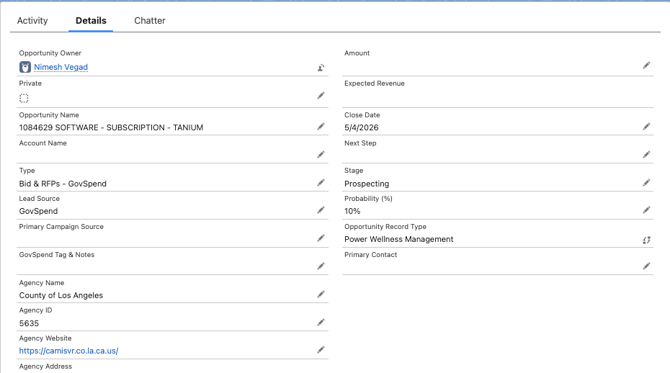
Depending on how your Admin set up your team's workflow, a GovSpend Bid might show up in your CRM as a new "Opportunity," or a GovSpend Contact might show up as a new "Lead."
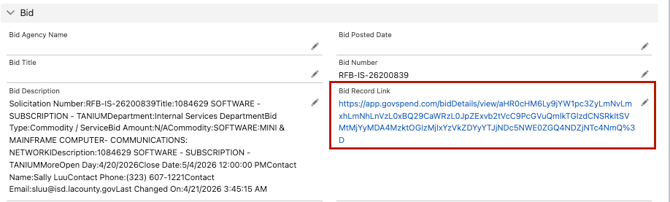
Pro-Tip for Sales Reps: If your Admin mapped the GovSpend Record Link field, you will see a direct URL on your new CRM record. If you ever need to dive deeper into the original data, just click that link to jump right back into the exact GovSpend page you started from!