![GS Logo-GS platform.png]](https://support.govspend.com/hs-fs/hubfs/GS%20Logo-GS%20platform.png?height=25&name=GS%20Logo-GS%20platform.png)
Overview
Searching for SAM notices is most effective when you combine filters on the left side of the screen with keywords in the top search bar.
- Apply & Adjust Filters
- Use Keywords to Refine Your Search
- Adjust & Refine Your Results
- Manage Notices with CRM Integration & AI Notebook
- Review & Save Notices
- Quick Reference Summary
- Pro Tips
Step 1: Apply and Adjust Filters
Default Filter: Open Notices
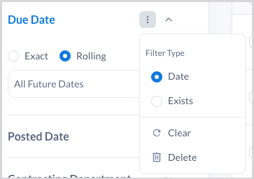
The Due Date filter is automatically configured to show open notices — those with a due date in the future.
If you want to view archived or closed notices:
-
Open the Due Date menu.
-
Change the time frame, or
-
Select the three-dot menu → Clear.
Adding Additional Filters
To refine your search further:
-
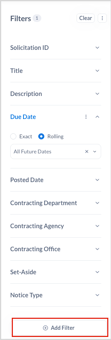
Scroll to the bottom of the filter list.
-
Click Add Filter.
-
Search for the field you want (for example, Agency, State, or Notice Type).
-
Check the box and click Add Filter.
Your new filter will appear at the bottom of the list.
Step 2: Use Keywords to Refine Your Search
Enter relevant keywords in the top search bar and press Enter.
A preview count will display how many results match before you confirm the search.
Expanding Keyword Scope
To broaden your search:
-
Click the filter icon next to the search field.

-
Select Title, Description, and Documents to expand your search.
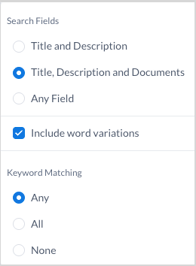
Tip: Many government COs include key details in attachments instead of the description. Including documents increases results but may add extra noise. Add more specific search terms to narrow your results.
Step 3: Adjust and Refine Your Results
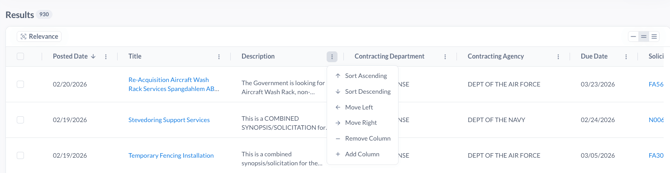
SAM Notices are automatically sorted by Relevance. To customize your search results:
-
Click the three-dot menu (⋮) in any column header to:
-
Sort ascending or descending
-
Move columns left or right
-
Add or remove columns
-
Filter within that column
-
Clicking on keyword terms in your results also opens a menu with additional filtering options to fine-tune your search.
Step 4: Manage Notices with CRM and Notebook
Select notices by checking the boxes next to them. This enables two key management features:
| Feature | Description |
|---|---|
| Add to CRM | Sends selected notices directly to Salesforce. |
| Add to Notebook | Saves selected notices for tracking, collaboration, or follow-up. |
Note: If you do not see these options in your GovSpend Federal account, please contact your Relationship Manager.
Step 5: Review and Save Notices
After reviewing a SAM notice, click the notebook icon to save it for later reference or collaboration.
Quick Reference Summary
| Task | How to Do It |
|---|---|
| View open notices | Use the default Due Date filter |
| View archived or closed notices | Clear or adjust the Due Date filter |
| Add more filters | Click Add Filter |
| Broaden search scope | Toggle Title, Descriptions, and Documents |
| Send notices to Salesforce | Use Add to CRM |
| Save notices for later | Use Add to Notebook |
Pro Tips
-
Combine filters and precise keywords for best results.
-
Start broad, then narrow down with filters as needed.
-
Always check attached documents — they often contain key details.