---
title: "Opportunities Module: How to Guide"
description: How to Guide of Opportunities Module
---
[Skip to content](https://support.govspend.com/opp-module-how-to-guide#main-content)
English
Show submenu for translations
[![GS Logo-GS platform.png\]](https://support.govspend.com/hs-fs/hubfs/GS%20Logo-GS%20platform.png?height=25&name=GS%20Logo-GS%20platform.png)](https://support.govspend.com/?hsLang=en)
- [Home](https://support.govspend.com/)
- [Email Support](mailto:support@govspend.com)
- [Product Health Status](https://support.govspend.com/product-health-status)
- [What's New](https://support.govspend.com/)
Show submenu for What's New
- [New User Onboarding](https://support.govspend.com/govspend-onboarding-journey)
- [Releases & Updates](https://support.govspend.com/releases-updates)
- [Newsletters](https://support.govspend.com/newsletter-archive)
- [Sales Training Videos](https://app.govspend.com/trainingVideos)
Open main navigation
Close main navigation
- [Home](https://support.govspend.com/)
- [Email Support](mailto:support@govspend.com)
- [Product Health Status](https://support.govspend.com/product-health-status)
- [What's New](https://support.govspend.com/)
Show submenu for What's New
- [New User Onboarding](https://support.govspend.com/govspend-onboarding-journey)
- [Releases & Updates](https://support.govspend.com/releases-updates)
- [Newsletters](https://support.govspend.com/newsletter-archive)
- [Sales Training Videos](https://app.govspend.com/trainingVideos)
- English
Show submenu for translations
- [Log into GovSpend](https://app.govspend.com/)
[Log into GovSpend](https://app.govspend.com/)
Skip the browsing—search for the fastest, most relevant results.
- There are no suggestions because the search field is empty.
1. [GovSpend Help Center](https://support.govspend.com/?hsLang=en)
2. [AI & Automation](https://support.govspend.com/ai-automation?hsLang=en)
3. [Opportunities Module](https://support.govspend.com/ai-automation?hsLang=en#opportunities-module)
# Opportunities Module: How to Guide
## This article walks you through how to use the Opportunities Module.
1. [Using the Opportunities Module](https://support.govspend.com/opp-module-how-to-guide#a-using-opp-mod)
1. [Home View](https://support.govspend.com/opp-module-how-to-guide#b-opp-mod-home)
2. [Types of Opportunities You'll See](https://support.govspend.com/opp-module-how-to-guide#c-opp-mod-types)
3. [Tracking Your Opportunities](https://support.govspend.com/opp-module-how-to-guide#d-tracking-opps)
4. [How to Sort & Filter your Opportunities](https://support.govspend.com/opp-module-how-to-guide#e-sort-filter-opps)
2. [Opportunities Detail View](https://support.govspend.com/opp-module-how-to-guide#f-opp-details-view)
3. [Integrations](https://support.govspend.com/opp-module-how-to-guide#g-opp-mod-integrations)
4. [Setting Opportunities as Your Homepage](https://support.govspend.com/opp-module-how-to-guide#opp-homepage)
**Access**
**To check whether you have access, click [here](https://app.govspend.com/dashboard).** If you’re directed to the Opportunities module, you already have access. If you are not taken to the Opportunities module, please request access using the form below:
### Using the Opportunities Module
#### **Home View**
When you open Opportunities, you’ll see a **ranked list of opportunities**, ordered by relevance score.
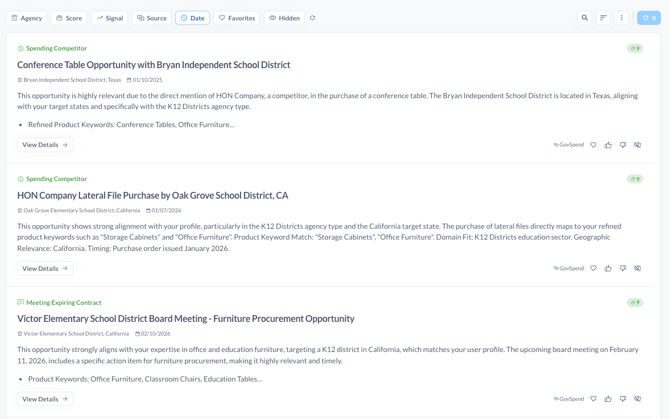
Each opportunity includes:
- A short summary overview, customized based on your profile
- An explanation of **why the opportunity is relevant to you**, such as:
- Matching your product and service keywords
- Aligning with your target agency types
- Falling within your geographic focus
- The type of signal (meeting, bid, spending, public web)
- The key date for the record (Bid due date, Contract end date, Meeting date, etc.)
- A relevance score indicating how closely it matches your profile, timing, and actionability
You’ll always see what GovSpend believes is **most important to you first**.
#### **Types of Opportunities You’ll See**
**Meetings**
Meetings that mention your products, services, or competitors — often an early signal of upcoming purchasing activity.
- Track competitor mentions
- Mentions of renewing or expiring contracts
- Pre-bid discussions related to your product/service focus so you can get ahead
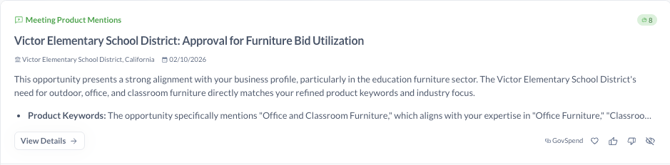
**Spending & Competitor Activity**
Insights showing where competitors are selling, helping you:
- Identify agencies already buying similar solutions
- Get ahead of future opportunities
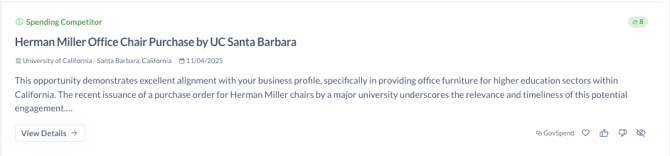
**Recent Posted Bids**
Relevant open bids tied directly to what you sell, without running separate bid searches.
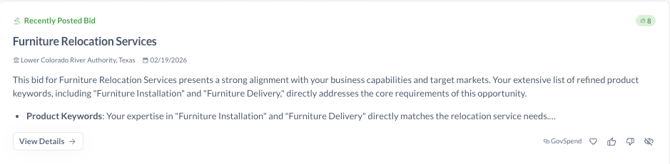
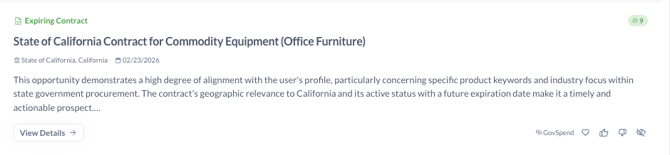
**Expiring Contracts**
Contracts with end dates in the next 12 months, allowing you to:
- Get ahead with agencies who may need your products/services in the future
- Track where your competitors have open contracts so you can look to displace them in the future
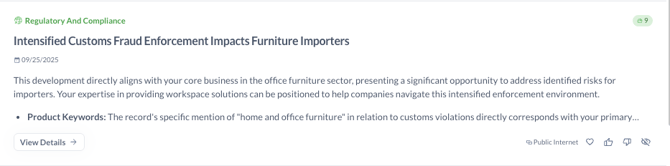
**Public Web Signals**
Opportunities sourced from public internet data, such as:
- Emergency incidents triggering spend
- New grant and funding announcements
- Pilot programs and new agency initiatives
- Organizational & Leadership changes at relevant agencies
- New regulatory and compliance actions
**Tracking Your Opportunities**
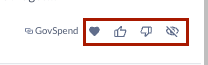
There are a few actions you can take on each opportunity to help you track your opportunities and provide feedback on their relevance to you.
- **Favorite** - Click the heart icon to track an opportunity to come back to later. You can use the Favorites filter at the top of the page to see any opportunities you've favorited along the way.
- **Hide** - If an opportunity is not relevant to you and you don't want to see it in your view, you can click the hide icon. This will remove that opportunity from your main view.
- **Thumbs Up** - If an opportunity is a good match for you, click the thumbs up icon to send feedback that will help us surface more similar opportunities in the future.
- **Thumbs Down** - If an opportunity is not a good match for you, click the thumbs down icon. Select whether it was not relevant, not accurate or select other to enter in custom feedback.
**How to Sort & Filter your Opportunities:**

Use the filters at the top of the page to filter your view and review your opportunities efficiently. The following filters are available:
- **Agency -** Use the Agency filter to review opportunities related to a specific agency or agencies.
- **State** - Filter by state in the Opportunities module
- **Score** - Use the range slider to filter your results by a score range (opportunity scores range from 1 being the least relevant to 10 being the most relevant). By default this filter is set to show opportunities scored between 7 and 10.
- **Signal** - Allows you to filter by your different signal types. If you're only interested in looking at Recently Posted Bids, for example, you can filter to look at only those signals in your view.
- **Source** - Filter by source if you want to isolate your view to only GovSpend signals or only signals from the Public internet.
- **Date** - Review opportunities for a selected date range, including "Today", "Last 7 Days", "Last 30 Days", or "All Time". The default for this filter is "Today" so you always have a fresh view of the newest opportunities each time you log in.
- **Favorites** - If you've used the heart icon to favorite any opportunities you can click the favorites filter to show only the opportunities you've favorited. Click the Favorites filter again to go back to your unfiltered view.
- **Hidden** - If you've hidden any opportunities from the main view, click this view to show only the opportunities you've hidden. If you find that you want to unhide any of these opportunities you can click the hide icon on the opportunity again to unhide it.
- **Reset** - To go back to the default filter settings, click the reset button.
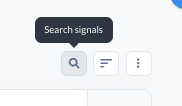
- **Search** - Click the magnifying glass in the top right if you want to do a quick search to filter your records. This will simply search the basic information available for the opportunity, it is not a robust keyword search.
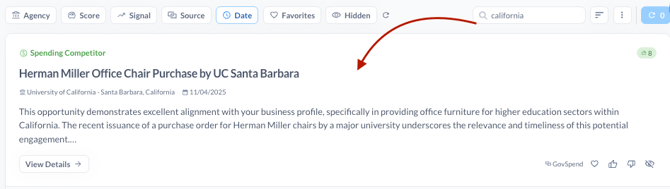
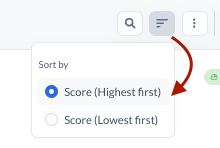
- **Sort** - Sort your records by score from highest to lowest or lowest to highest relevance. For the most efficient view, we recommend you use this filter and sort highest to lowest.
- By default, opportunities are sorted most recent first
### Opportunity Details View
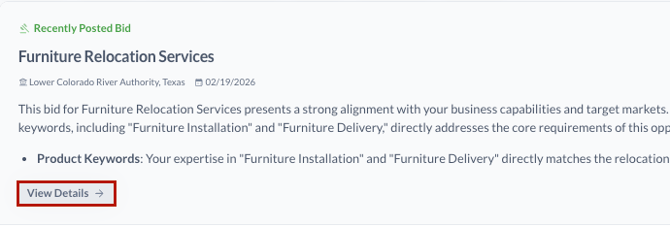
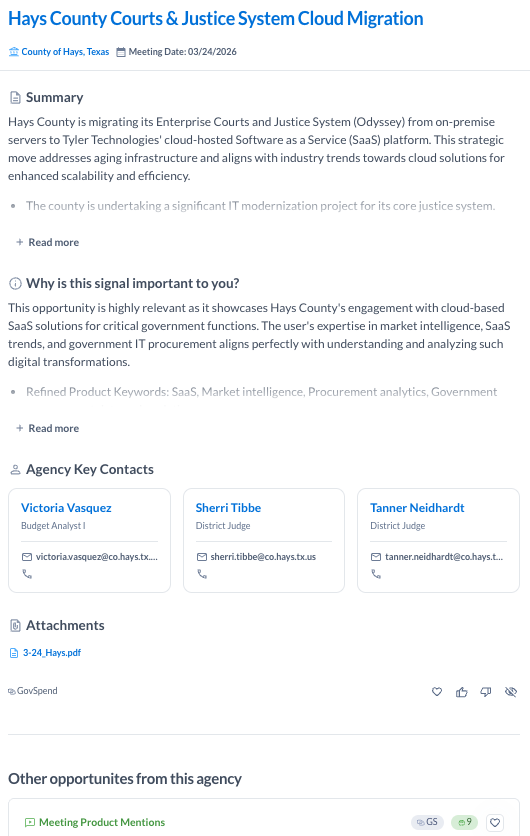
Clicking into an opportunity via the "View Details" button reveals:
- A detailed description customized based on your profile
- The reason it was surfaced to you
- Attachments (when available)
- Other related opportunities at the agency that are relevant to you
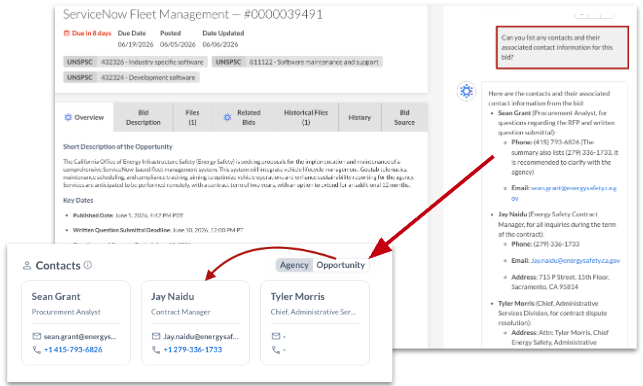
- In the Contacts section you’ll now see a toggle between “Agency” and “Opportunity” contacts:
- **Agency Contacts**: Displays up to 3 contacts from the associated agency giving preference to procurement/purchasing related contacts & decision makers
- **Opportunity Contacts**: Displays up to 3 contacts from the underlying GovSpend record, mentioned in the record itself, associated documents, or associated transcripts
- Agency Key Contacts
- Contact Relevance
- Navigate to the Opportunities Module
- Click “View Details” on any of the GovSpend Opportunities
- The three primary contacts listed on the Opportunity are now generated with the following logic:
- Priority 1: Purchasing & Procurement - Primary decision-makers for procurement processes. First point of contact for all purchasing inquiries.
- Priority 2: Technology & Education Leadership - Technology Director, IT Manager, CIO, Superintendent, Chief School Administrator
- Priority 3: Other Decision Makers - Other contacts flagged as “decision makers” without the Priority 1 or 2 titles

- View More Contacts
- Navigate to the Opportunities Module
- Click “View Details” on any of the GovSpend Opportunities
- In the “Agency Key Contacts” section click “View More”
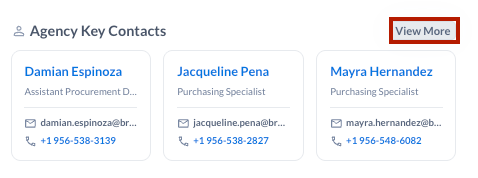
- - Access a subset of additional contacts for that Agency prioritized by purchasing/procurement related titles and decision makers
- In the Email and Phone columns, hover to access a copy function so you can copy a specific contact’s phone or email
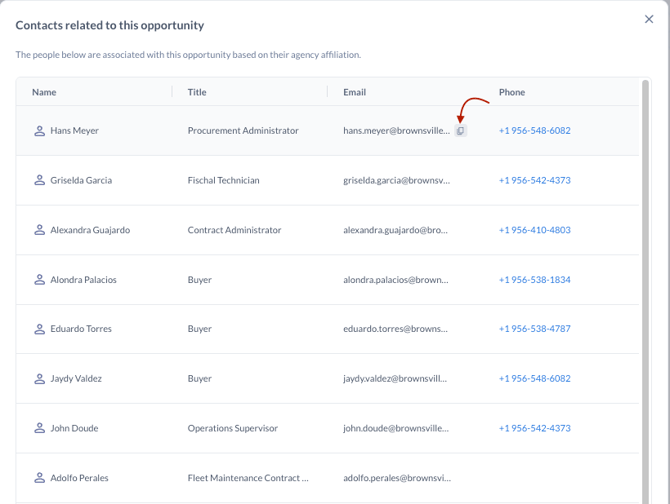
- - *Note that these are all contacts available in the GovSpend Contacts Module*
- Quick links to:
- The underlying GovSpend record associated with the signal (for example the Bid details page)
- The Agency Profile for the agency the opportunity is tied to
- The Web source for any signals from the public internet so you can validate and explore further
This transparency helps you quickly decide whether the opportunity is worth actioning.
### Integrations
**How to Integrate Contacts from Opportunities with your CRM:**
- If your account has CRM integration set up, navigate to the [Integrations page](https://app.govspend.com/account/integrations)
- Click into the enabled integration instance (Salesforce or Hubspot)
- Ensure that “Signals” is selected in the second step of configuration
- In step 4, the field mapping step, you’ll now see contact fields available to map for signals
- Notes:
- Since we show up to 3 contacts on the opportunity, you can map some or all of those contacts
- You can decide what information you want for that contact.
- Available fields:
- Contact Name
- Contact Email
- Contact Phone
**Scheduled CRM Integration for Signals**
- Navigate to your[**My Profile**](https://app.govspend.com/account/profile) OR the **Settings** on your [**Opportunities Module**](https://app.govspend.com/opportunities)
- In the Buying Signals section, you’ll now see a “**CRM**” toggle next to “Alerts”
- If you do NOT have CRM integration permissions, you will not see this toggle
- If you have CRM integration but haven't set up your Signals mappings, you won’t be able to toggle on the automated integration
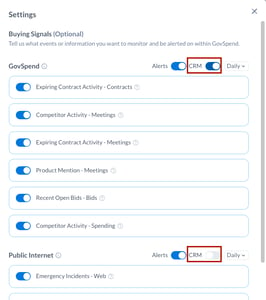
- Use the toggle next to “CRM’ to turn on the automated integrations
- Select whether you want a “**Daily**” or “**Weekly**” push of new opportunities
- The automated CRM integrations follow the same logic as alerts:
- We only push records of **score 5 or above**
- Users can set automated integrations separately for **GovSpend vs. Web** based signals
### Setting Opportunities as your Homepage
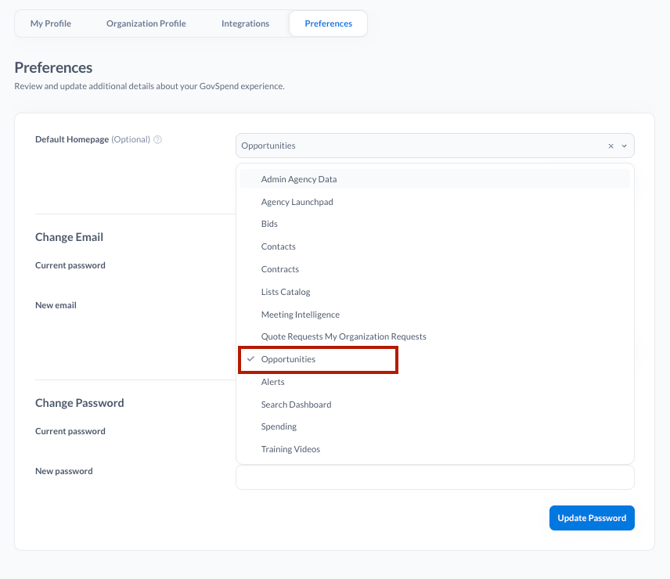
The Opportunities Module is now available as an option to select as your default homepage. This means each time you log in, you are taken directly to their Opportunities and can take action from there!
1. Navigate to your [My Profile](https://app.govspend.com/account/profile) page
2. Select **Preferences** from the top set of tabs
3. In the **Default Homepage** section expand the dropdown
4. Select **Opportunities** to set your default homepage to the Opportunities Module
5. Once Selected make sure to click **Update Homepage** to ensure your change is saved
- [Getting Started](https://support.govspend.com/getting-started?hsLang=en#main-content)
- [New User Onboarding](https://support.govspend.com/getting-started?hsLang=en#new-user-onboarding)
- [Free Trial Guides](https://support.govspend.com/free-trial-guides?hsLang=en)
- [The Lab](https://support.govspend.com/the-lab?hsLang=en#main-content)
- [\[Concept & Design\] Potential Upcoming Features](https://support.govspend.com/the-lab?hsLang=en#concept-design-potential-upcoming-features)
- [\[Beta\] AI Search](https://support.govspend.com/the-lab?hsLang=en#beta-ai-search)
- [\[Beta\] GovSpend Slack App](https://support.govspend.com/the-lab?hsLang=en#beta-govspend-slack-app)
- [Searching & Filtering](https://support.govspend.com/searching-filtering?hsLang=en#main-content)
- [General Search](https://support.govspend.com/searching-filtering?hsLang=en#general-search)
- [Module-Specific Search](https://support.govspend.com/searching-filtering?hsLang=en#module-specific-search)
- [Workflow Tips](https://support.govspend.com/searching-filtering?hsLang=en#workflow-tips)
- [AI & Automation](https://support.govspend.com/ai-automation?hsLang=en#main-content)
- [AI Access Points](https://support.govspend.com/ai-automation?hsLang=en#ai-access-points)
- [Opportunities Module](https://support.govspend.com/ai-automation?hsLang=en#opportunities-module)
- [MCP (Model Context Protocol) Server](https://support.govspend.com/ai-automation?hsLang=en#mcp-model-context-protocol-server)
- [AI Prompts & Chat](https://support.govspend.com/ai-automation?hsLang=en#ai-prompts-chat)
- [AI Notebook](https://support.govspend.com/ai-automation?hsLang=en#ai-notebook)
- [Integrations & Add-Ons](https://support.govspend.com/integrations-add-ons?hsLang=en#main-content)
- [CRM Integration](https://support.govspend.com/integrations-add-ons?hsLang=en#crm-integration)
- [Other Integrations](https://support.govspend.com/integrations-add-ons?hsLang=en#other-integrations)
- [Add-Ons](https://support.govspend.com/integrations-add-ons?hsLang=en#add-ons)
- [Training Webinars](https://support.govspend.com/training-webinars?hsLang=en#main-content)
- [Platform Training](https://support.govspend.com/training-webinars?hsLang=en#platform-training)
- [Platform Strategy](https://support.govspend.com/training-webinars?hsLang=en#platform-strategy)
- [Webinar Series | Beyond the Bid: Industry Insights That Win](https://support.govspend.com/training-webinars?hsLang=en#webinar-series-beyond-the-bid-industry-insights-that-win)
- [Report Templates](https://support.govspend.com/report-templates?hsLang=en)
- [Releases & Updates](https://support.govspend.com/releases-updates?hsLang=en#main-content)
- [2026 Product Enhancements](https://support.govspend.com/releases-updates?hsLang=en#2026-product-enhancements)
- [2025 Product Enhancements](https://support.govspend.com/releases-updates?hsLang=en#2025-product-enhancements)
- [2024 Product Enhancements](https://support.govspend.com/releases-updates?hsLang=en#2024-product-enhancements)
- [2023 Product Enhancements](https://support.govspend.com/releases-updates?hsLang=en#2023-product-enhancements)
- [Newsletters](https://support.govspend.com/releases-updates?hsLang=en#newsletters)
- [Data Overviews](https://support.govspend.com/data-overviews?hsLang=en)
- [Quotes & RFQs](https://support.govspend.com/quotes-rfqs?hsLang=en#main-content)
- [For Companies](https://support.govspend.com/quotes-rfqs?hsLang=en#for-companies)
- [For Agencies](https://support.govspend.com/quotes-rfqs?hsLang=en#for-agencies)
- [Technical Support](https://support.govspend.com/technical-support?hsLang=en)
- [Agency Launchpad](https://support.govspend.com/agency-launchpad?hsLang=en)
- [GovSpend Federal](https://support.govspend.com/govspend-federal?hsLang=en#main-content)
- [Introduction](https://support.govspend.com/govspend-federal?hsLang=en#introduction)
- [Search Modules](https://support.govspend.com/govspend-federal?hsLang=en#search-modules)
- [Opportunities](https://support.govspend.com/govspend-federal?hsLang=en#opportunities)
[](https://support.govspend.com?hsLang=en)
[Privacy](https://govspend.com/privacy/) | [Terms](https://govspend.com/terms/)
Copyright © 2025 GovSpend