![GS Logo-GS platform.png]](https://support.govspend.com/hs-fs/hubfs/GS%20Logo-GS%20platform.png?height=25&name=GS%20Logo-GS%20platform.png)
For general information on creating searches, click here.
Managing Keywords
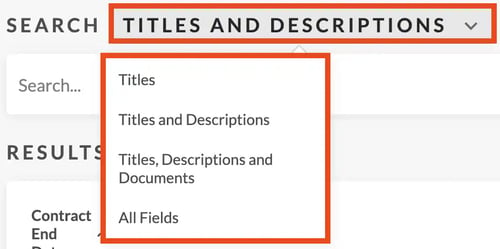
1. Above the search bar, you can choose where your keywords check for valid results.
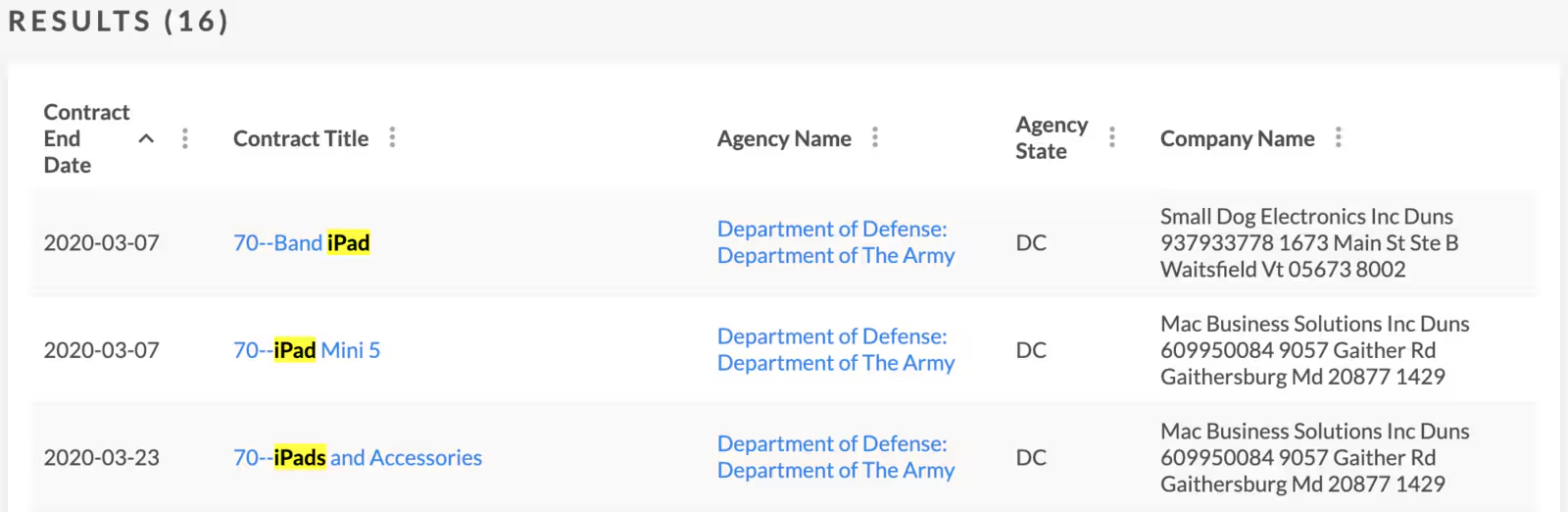
2. Once you are done making changes to your search, the ‘RESULTS’ section will detail every contract that matches your search. By default, this will display open contracts, starting with the ones that close soonest.
Limiting Dates
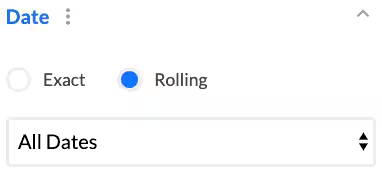
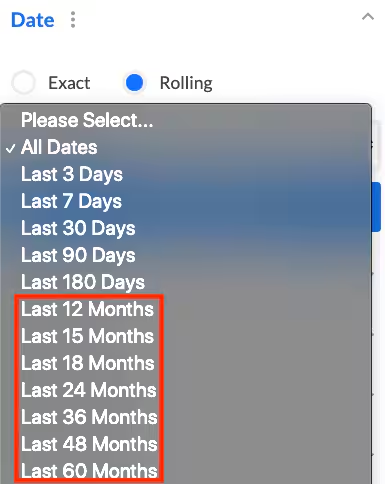
In most cases, removing older contracts and renewals from your search will be the best choice. Although this is optional, you can do so by following the below steps:1. Click on the 'Date' filter.
2. Click on "Rolling."
Use "Connect Saved Search" within the Co-Ops & Contracts module. Add the Agency results or search filters from an existing contracts search as filter criteria for a new Contracts search.
- Navigate to the Contracts module
- In the left set of filters click “Add Filter”
- Find and select the “Connect Saved Search” category
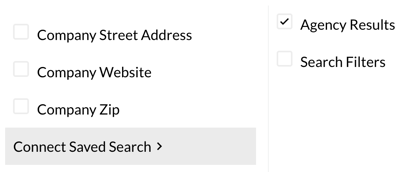
- Choose between the following options:
- Agency Results - Use the set of Agency results from an existing Contracts search you select to filter your new search
- Search Filters - Use all the filter settings from an existing Contracts search you select to filter your new search
- Click “Add 1 filter”
- Then click “Pick Search” and select a search from the list
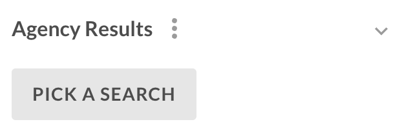
- Select “Search” to filter your results!