![GS Logo-GS platform.png]](https://support.govspend.com/hs-fs/hubfs/GS%20Logo-GS%20platform.png?height=25&name=GS%20Logo-GS%20platform.png)
Get your curated GovSpend and Web signals delivered to you directly in a slack channel of your choice!
Getting Started - Admin
Install the GovSpend Opportunities integration app to your workspace. Note that a Slack Admin is required to complete the installation. All team members can then connect their own accounts individually.
- Within your Account Settings select Organization
- Navigate to the Manage Integrations page
- Find the "Opportunities in Slack" integration option
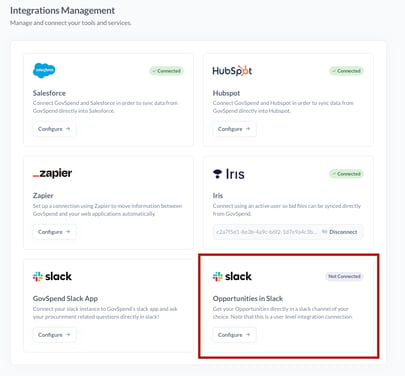
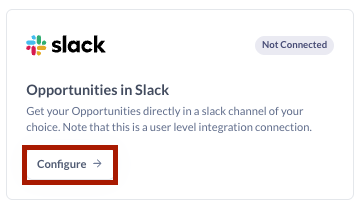
- Click "Configure"
- If you are the Slack Admin for your company, you will be prompted through installing the app
- If you are not a Slack Admin, you will be prompted to make a request to your admin to install the app
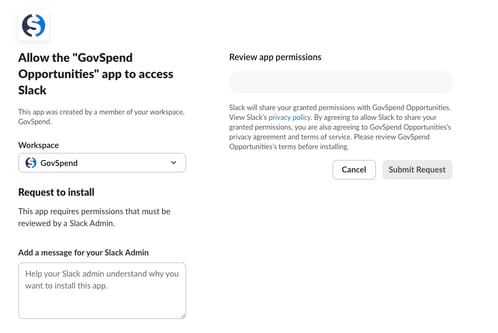
- Once your Slack Admin has installed and approved the GovSpend Opportunities integration app, users can connect the integration following the steps below
Per-User Set-up
Once the GovSpend Opportunities integration app is installed for your organization, every user can connect and select their preferred slack channel for the integration. Follow the steps below to configure your integration:
- Navigate to the Manage Integrations page
- Click "Configure"
- You will be taken to a page where you must select the slack channel to which you want to send your Opportunities
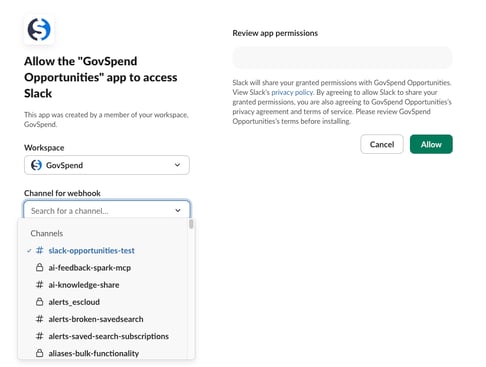
- Once you've selected your slack channel click "Allow"
- You are now ready to integrate Opportunities!
- Note that the Opportunities in Slack integration on the Manage Integrations page will show a "connected" status and display your selected slack channel for the integration
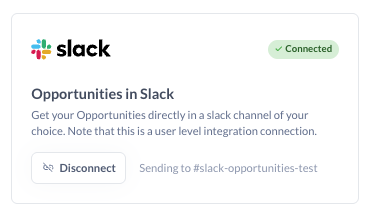
Integrating Opportunities!
Manually send individual opportunity records to your slack channel or get a daily/weekly digest of your opportunities via an automated integration.
Pushing Individual Opportunity Records to Slack:
-
Navigate to the Opportunities Module
- Click "View Details" for any GovSpend or Web opportunity you want to push to slack
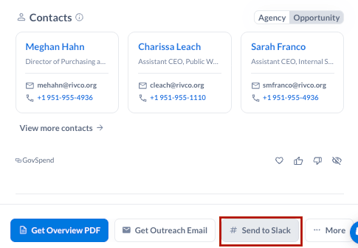
- Find and select the "Send to Slack" button
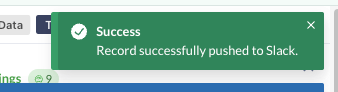
- A green "Success" toast message will indicate that the opportunity was successfully pushed to slack
- The slack message will contain the majority of the information that you see for the Opportunity when you click "View Details". See example below:
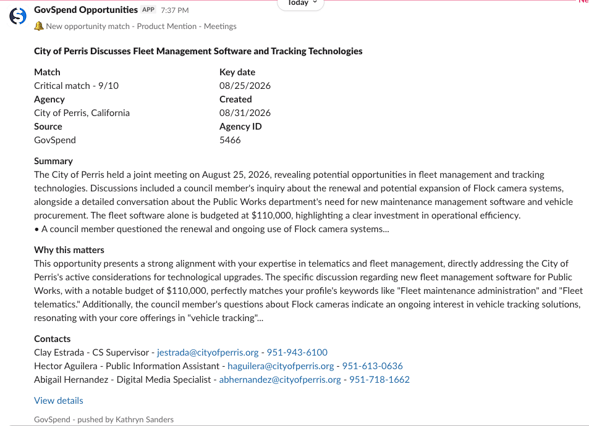
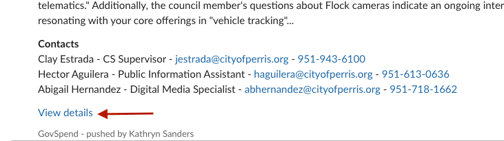
- You can also select "View Details" from the slack message to navigate back to that opportunity within GovSpend
Setting Up and Automated push of Opportunities to Slack:
- Navigate to the Buying Signals settings in either the Opportunities Settings or from your SLED Profile
- Use the toggle next to "Slack" to turn on automated integrations
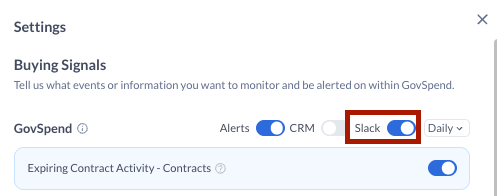
- Select a frequency of either "Daily" or "Weekly"
- Note that the frequency you select will apply to any alerts/integrations you have setup, you cannot select a different frequency option per integration.
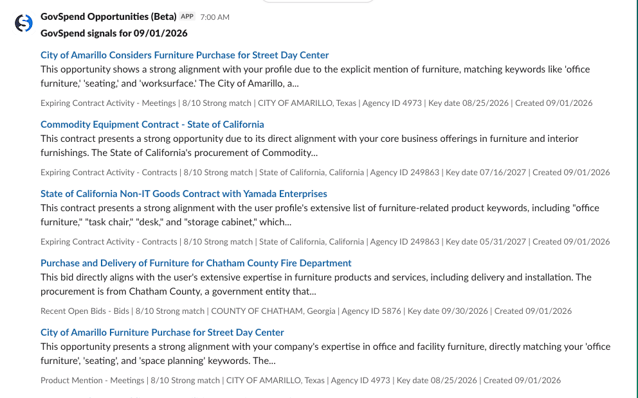
- A digest of your top 20 opportunities by score will be sent to your selected slack channel according to the frequency you've selected.
Troubleshooting Issues with the Integration:
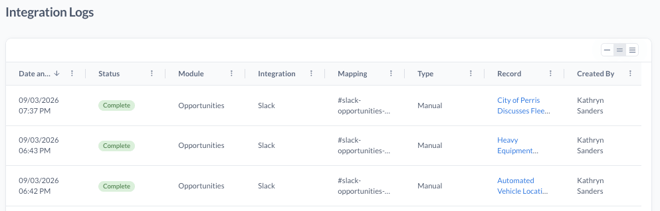
- Navigate to the Integration Logs page to view the status of any of your slack integrations
- Each record you integrate will appear as its own row in the logs with the following statuses:
- Complete - record was integrated successfully
- Pending - the record is still in process of being integrated
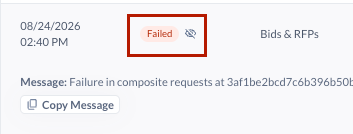
- Failed - the record failed to integrate successfully
- Example of what the Slack Opportunity integration logs will look like:
- If a record fails, click the "eye" icon next to Failed to see and copy the error message. If you need additional help troubleshooting, please reach out to your Relationship Manager so we can help look into it!