![GS Logo-GS platform.png]](https://support.govspend.com/hs-fs/hubfs/GS%20Logo-GS%20platform.png?height=25&name=GS%20Logo-GS%20platform.png)
Pavilion
Our Pavilion integration highlights real-time agency intent, pre-RFP leads, and cooperative purchasing activity. These are exclusive signals sourced from real buyer activity on Pavilion, not a public posting. Click here to learn more about Pavilion.
How It Works
- Discover Pavilion Signals in GovSpend
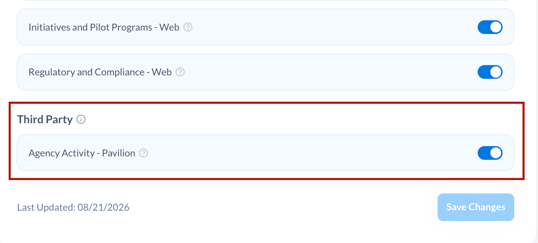
Pavilion signals appear directly alongside your other search results in your opportunity feeds.- Navigate to your SLED Profile page or Opportunity Settings
- Within the "Buying Signals" section, scroll to find the "Third Party" category
- Use the toggle to turn on the Pavilion signal and then click "Save Changes/Settings"
-
- With the next generation of new opportunities (likely within 24 hours) you will start to see Pavilion opportunities appear in your feed
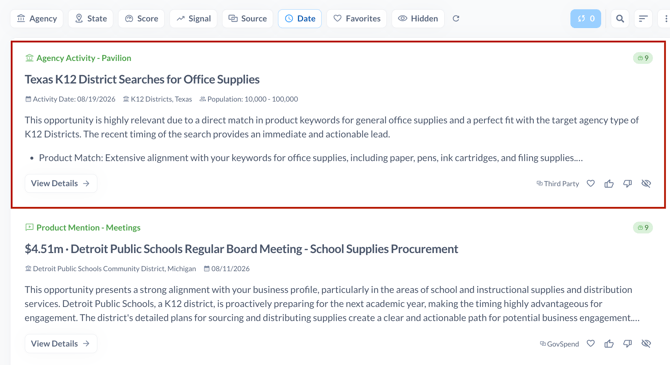
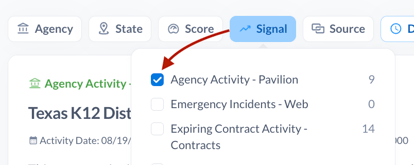
- You can use the "Signal" filter to specifically review your Pavilion signals
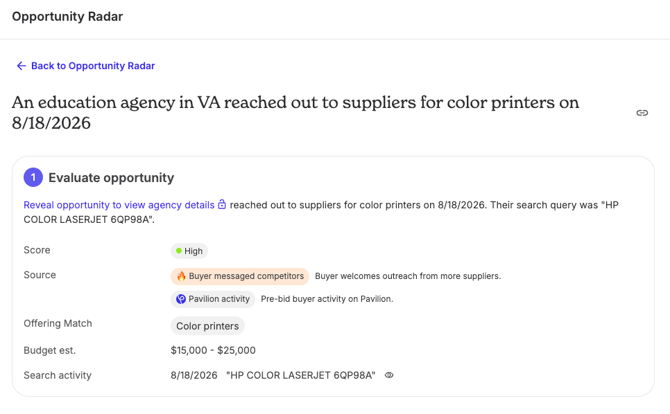
- Click "View Details" to see the full summary and relevance summary and access a link to view more
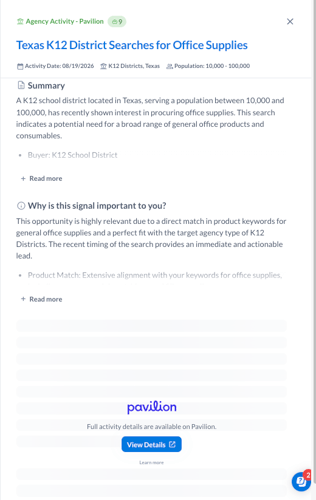
- Note that the Pavilion signals are curated based on your SLED profile settings
- Click to View on Pavilion
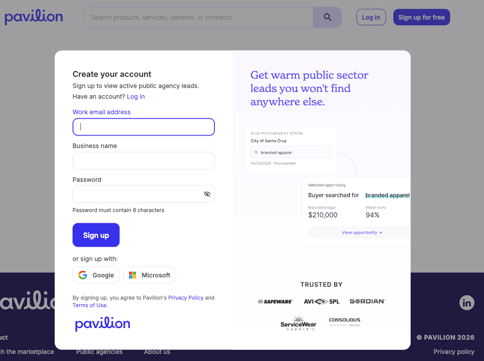
Click the "View Details" link on any Pavilion signal to jump directly to the opportunity on Pavilion’s platform to review full buyer details and context.- The first time you click the link you will be prompted to create an account
-
- Once you have logged into Pavilion your Organization will have full access to 5 leads for free. After that you will still be able to access additional information about the signal in Pavilion, but some features will not be accessible without a paid subscription.
Take action on your Pavilion signals in GovSpend
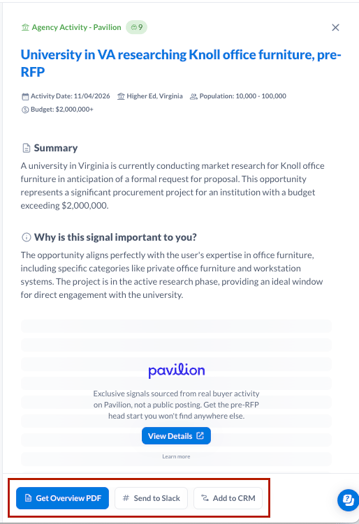
We support the following actions for Pavilion signals within GovSpend. Find them when you click "View Details" for any record in your Opportunities feed.
- Generate Overview PDF: Generate a printable overview PDF with all the information available for that Pavilion signal.
- Send to Slack: If you have our slack integration set up, you can push individual Pavilion signals directly to a slack channel of your choice. Click here to learn more about our slack integration.
- CRM Integration: If you have one of our CRM Integrations configured (Salesforce or Hubspot) you can also push Pavilion signals to your CRM. Simply set up and configure integrations for Opportunities and you can push Pavilion signals along with any other GovSpend or Web opportunities.
Managing Your Pavilion Account
To view full opportunity details on Pavilion, you will need a Pavilion account. As mentioned above, you will be prompted to create a free account when you click "View Details" from a Pavilion signal.
For details on account options, feature access, or subscription plans, visit Pavilion's website.