![GS Logo-GS platform.png]](https://support.govspend.com/hs-fs/hubfs/GS%20Logo-GS%20platform.png?height=25&name=GS%20Logo-GS%20platform.png)
Access
To check whether you have access, click here. If you’re directed to the Opportunities module, you already have access. If you are not taken to the Opportunities module, please request access using the form below:
Taking Action on Your Opportunities
The Opportunities module is designed to be a one-stop shop for actioning opportunities. Empower your team to move from discovery to action — all in one place.
To learn more about setting up and reviewing your Opportunities module, click here.
Email Alerts
Receive notifications of new, relevant opportunities in your inbox every day with just a few easy steps!
Setting up your Opportunities Alerts:
- Alert settings for the Opportunities module can be found in two places:
- In My Settings within your SLED Profile
- In the "Settings" on your Opportunities page
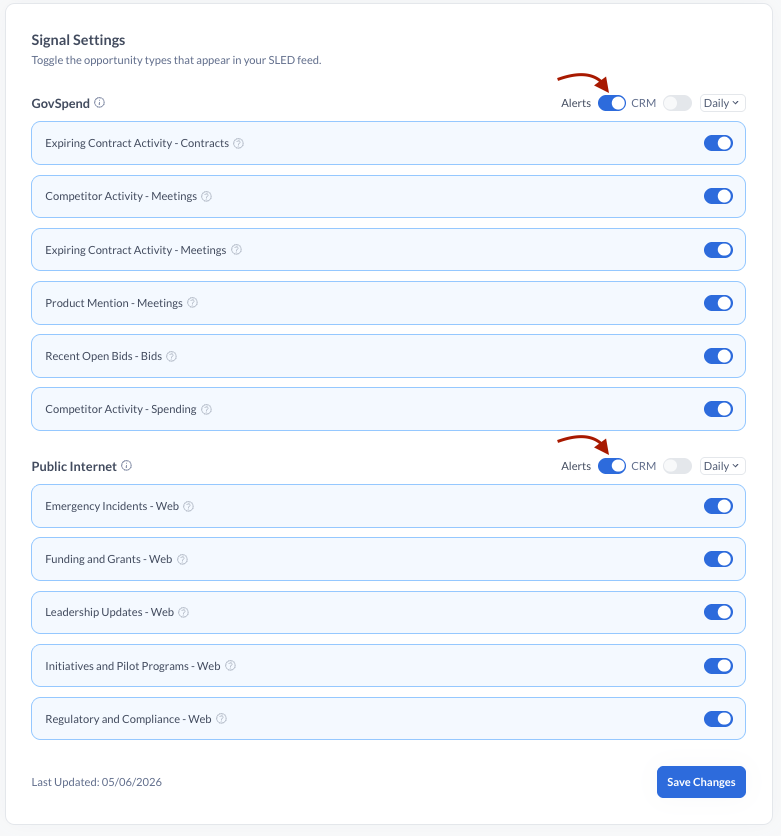
- Alerts are bundled into two separate "Digest" emails, one for opportunities sourced from within GovSpend and one for opportunities sourced from the public internet
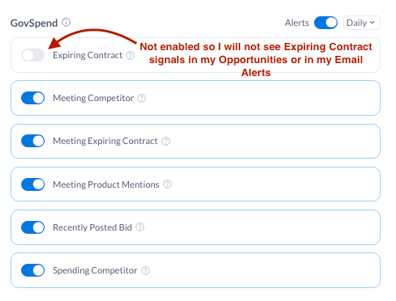
- GovSpend: Receive email alerts for the GovSpend signals you have enabled. You must have the signal enabled in order for it to be included in your alert.
-
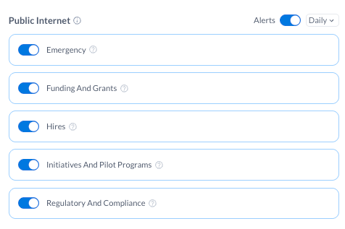
- Public Internet/Web: Receive email alerts for the Public Internet signals you have enabled. You must have the signal enabled in order for it to be included in your alert.
- To turn on your Alerts:
- Navigate to your SLED Profile page or Settings on your Opportunities page
- Find the "Buying Signals" section
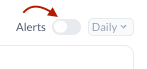
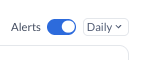
- Use the toggle next to "Alerts" to turn on or off your email alerts
-
-
- You must make this selection for GovSpend signals and Web signals separately
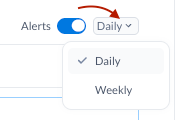
- Select the frequency you want to receive your alerts:
- Daily: Receive a digest email each day with new GovSpend or Web sourced signals
- Weekly: Receive a digest email once a week on Friday with new GovSpend or Web sourced signals from the week
-
Reviewing your Alert Emails
- Separate digest emails are sent for GovSpend sourced opportunities vs. web sourced opportunities, which you can distinguish in the email subjects

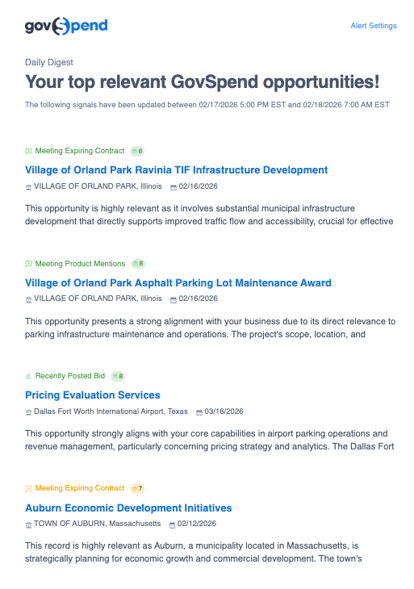

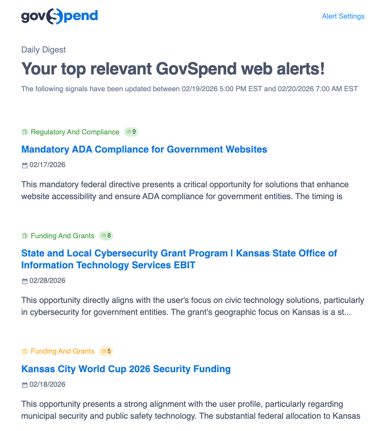
- Your digest email will contain up to 20 new opportunities
- Opportunities are sorted by relevance score and date, so you're seeing the most relevant and most recent opportunities first
- Only opportunities with a score of 5 and above are included in your email alert
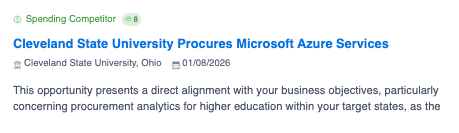
- For each opportunity, you'll see the following information:
- Type of Opportunity (i.e. Recent Bid, Spending Competitor, etc.)
- Opportunity title (short AI generated title of the opportunity)
- Agency Name and State
- Key Date of the Opportunity, with the key dates as follows:
- Open Bid: Bid due date
- Expiring Contract: Contract End date
- Purchase Order: Issued Date
- Public Meeting: Meeting Date
- Public Internet: Date opportunity identified
- Relevance Summary: Why the opportunity is important and relevant to you
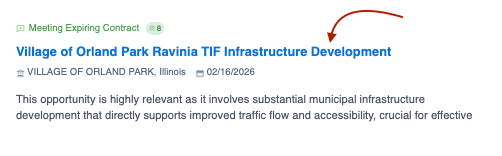
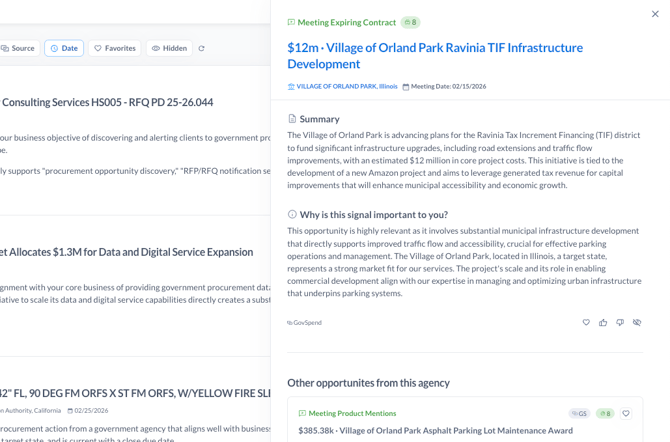
- Click the Opportunity title to navigate to that specific opportunity in your Opportunities module if you want to learn more
-
Toggling buying signals on or off:
-
When you toggle a buying signal off it will hide all signals related to that signal type from your view (with exception to if you “favorite” a signal)
-
When you toggle that signal back on, your historical signals will be visible again
-
Note that toggling off a buying signal will also stop new signals of that type from flowing through
-
CRM Integration: Salesforce and HubSpot
Push relevant opportunities from your Opportunities module directly into your CRM system so your teams can action faster.
If you are not currently set up with Salesforce or HubSpot integration capabilities and are interested, take a look at our introductory information and reach out to your relationship manager.
Configuring Integration for Opportunities
- Navigate to the Integrations page from the Manage Integrations page (click "configure" for either Salesforce or HubSpot)
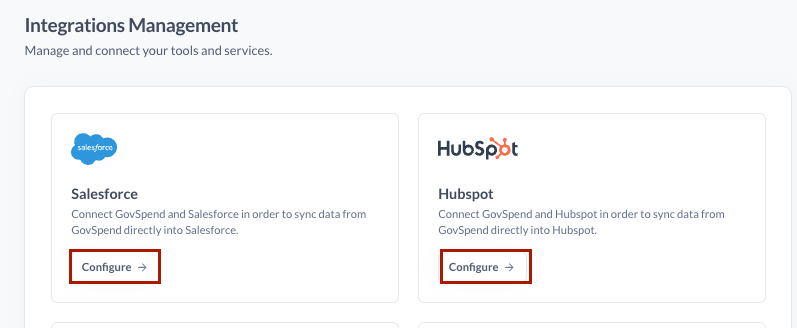
- Select your integration instance, either Salesforce or HubSpot
- For full instructions on how to initially connect and configure your integration, click here
- In the second configuration step "GovSpend Record Types" select "Signal"
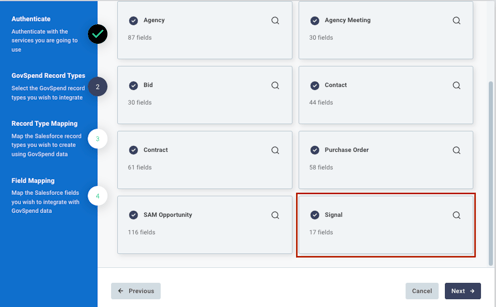
- Click "next" to move to the Record Type Mapping step
- Click "Add to Mapping" and in the Source column select "Signal", in the destination column select the object you want to map Opportunities to in your CRM system
- For Salesforce we recommend mapping to a Lead or Opportunity
- For HubSpot we recommend mapping to a Deal

- Click next to navigate to the field mapping step
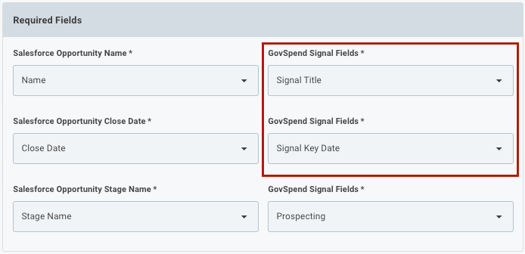
- Ensure that you select a GovSpend Signal field to map to any required fields for that object
- In the Optional Fields section, click "add to mapping" to select any other fields you want to send when you integrate an opportunity
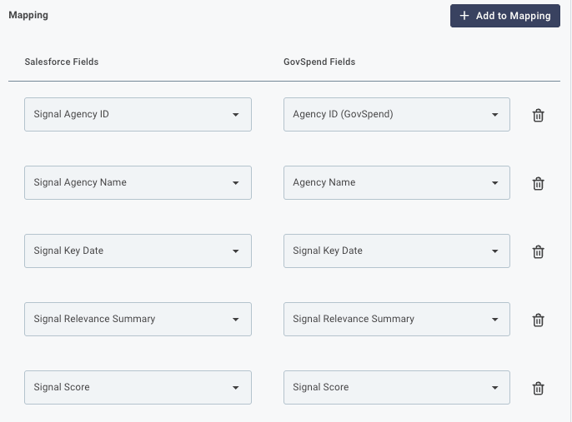
- Below are the fields available to map with a short explanation of each
| Field Name | Field Description |
| Buying Signal |
Represents the signal/opportunity type (i.e. Expiring Contract or Recent Open Bid) |
| Signal Title | AI generated name of the signal found in the Opportunities module |
| Signal Key Date | Date associated with the underlying signal data (i.e. bid due date or meeting date) |
| Signal Summary | AI-powered overview of the opportunity, curated to your user profile |
| Signal Relevance Summary | AI-powered summary of why the opportunity is relevant to you |
| Signal Score | Score ranging from 1-10 based on relevance, timing and actionability |
| Signal Source | Indicates the source of the data: GovSpend or information from the Public Internet |
| Signal Source Link | URL link to the original record in GovSpend or the open web |
| Agency Name | Name of the Agency associated with the Opportunity |
| Agency ID (GovSpend) | Unique GovSpend ID associated with the AGency |
Integrating Opportunities
Once you've configured your integration to include the Signal dataset, you are ready to start pushing opportunities to your CRM!
Manual Integrations:
- Navigate to the Opportunities page
- Click "View Details" for any opportunity you want to send to your CRM
- In the bottom of the details section you'll see a "Add to CRM" button
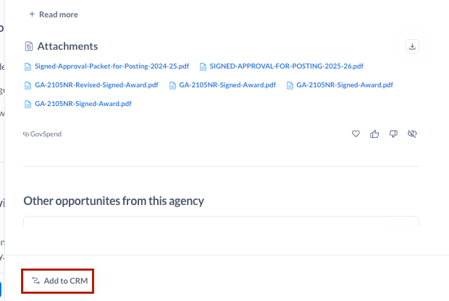
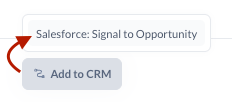
- Click that button and select the mapping you want to use to send data
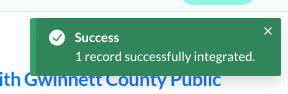
- You'll receive a progress and success message once your integration is complete
- To review any errors or track data that has been integrated, review the Integrations logs page
Scheduled Integrations:
- You can also choose to push new opportunities on a schedule to your CRM, similar to opportunity email alerts.
- How to set up Scheduled Opportunity integrations:
- CRM scheduled integration settings for the Opportunities module can be found in two places:
- In My Settings within your SLED Profile
- In the "Settings" on your Opportunities page
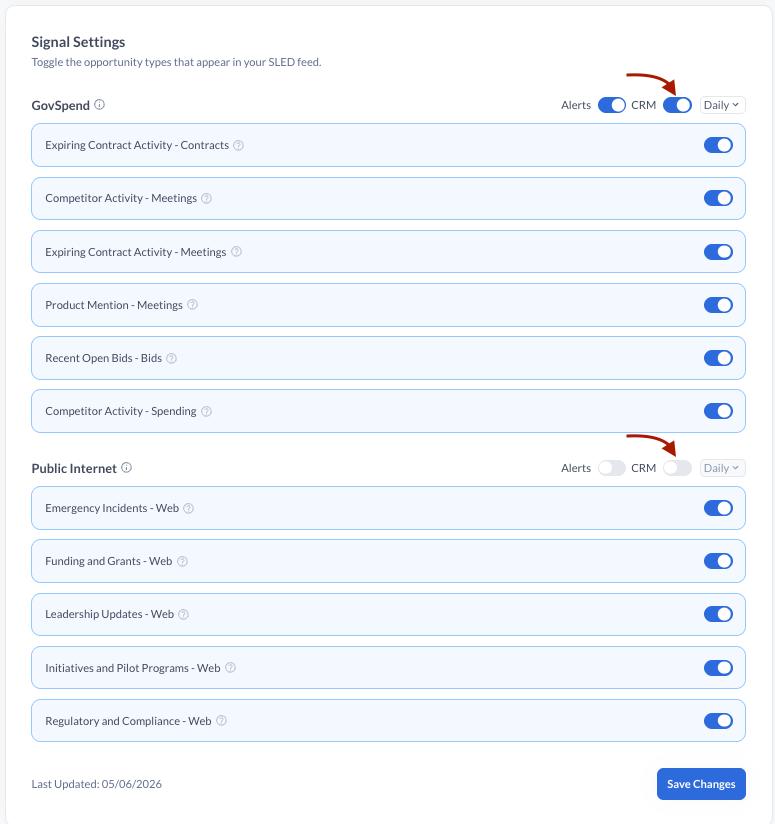
- Use the toggle next to "CRM" to turn on or off your scheduled CRM integration. You can turn on integrations separately for GovSpend vs. Web signals.
- Select a frequency to push your opportunities, either "Daily" or "Weekly"
- Note that the same frequency will be applied to both your CRM integration and email alerts
- CRM scheduled integration settings for the Opportunities module can be found in two places:
Example of Integrated Opportunity
Below is an example of what the data can look like in your Salesforce or HubSpot instance:
Salesforce:
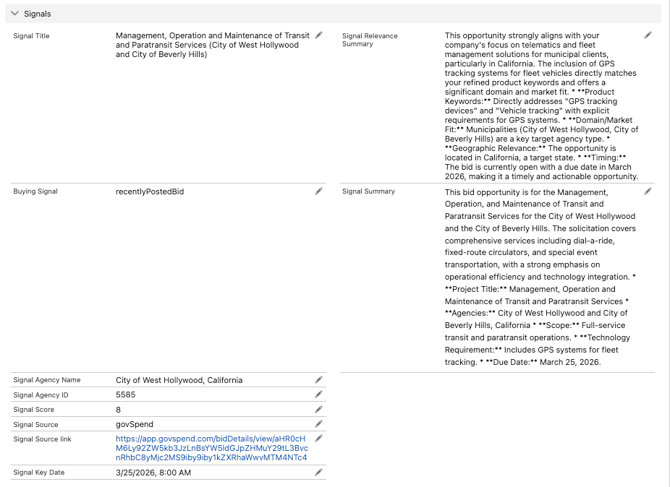
HubSpot:
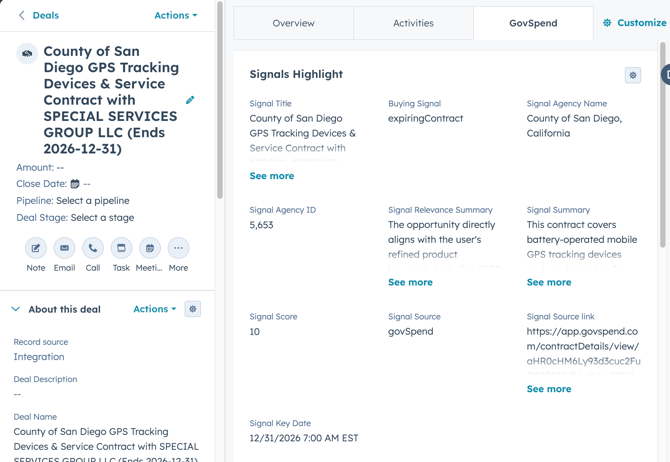
Pro Tip: We recommend creating custom fields in your CRM for the GovSpend signal fields to ensure you can take advantage of all the data available to you.
Generate an Outreach Email from an Opportunity
-
Navigate to the Opportunities page
-
Click “View Details” for any GovSpend signal
-
At the bottom of the details section click “Generate Outreach Email” to create an email curated to the type of opportunity and your profile information.
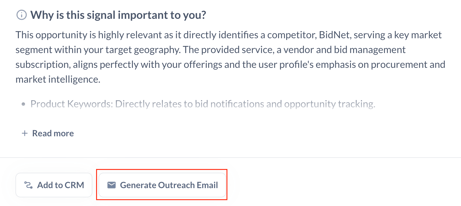
-
Click “Send” to open the email up in your computer’s native email application
-
If there is contact data associated with the opportunity we will pre-populate one of the contacts’ emails (which can be manually changed)
Generate Signal Overview PDF
-
Click “View Details” on any of the GovSpend Opportunities.
-
In the bottom actions bar click “Generate Signal Overview” to generate a PDF. Note that the additional details are generated from the underlying record including associated files or transcripts.
-
The title in the PDF links to the GovSpend record, the Agency Name links to the Agency Profile. Any associated files are also listed and linked in the PDF.
-
A message will appear in the top right of your screena s the PDF is generated
-
Open the PDF from your downloads once complete. Note that this is not currently available for Web Signals .
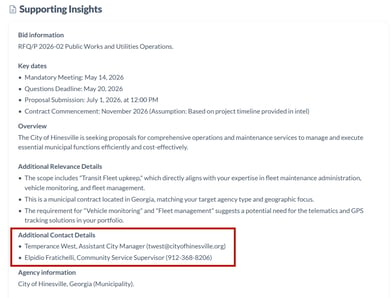
- Quick Note: Within the “Supporting Insights” Section you’ll now see an “Additional Contacts” section that will display additional contacts and associated information as provided in the record/documents/transcripts
- Design Updates
- One column layout: The design is updated to a one column layout with all the same information, just presented in a more streamlined fashion
- The “Opportunity Contacts” sourced from the underlying GovSpend record are now displayed in addition to the Agency Contacts. Both are displayed in the top section of the PDF for easy access.
- The file name of the PDF is now updated to include “GovSpend” to ensure you can track this data is sourced from GovSpend! (govspend-signal-overview-XXXX.pdf)
Export Opportunities
- Navigate to the Opportunities Module
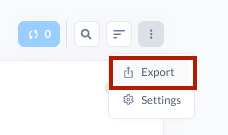
- Find and select the 3-dot menu on the far right of the page
- Select “Export”
- Your export will be given a default name which you can edit directly in the “Export Name” field if you’d like
- Select what you’d like to export:
- Filtered Opportunities: Exports the set of opportunities based on your active filters
- Today’s Opportunities: Exports Opportunities from the current day
- All Opportunities: Exports all your Opportunities
- Select whether you want to export in CSV or Excel format
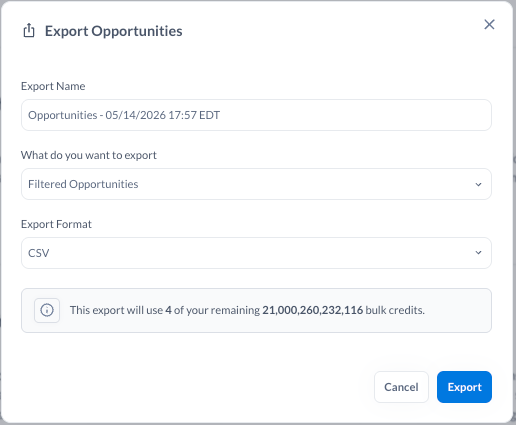
- Click Export - note that this will use your export credits
- Export contains all fields you have access to on the Opportunity as well as a link to the GovSpend record and link back to the Opportunity itself
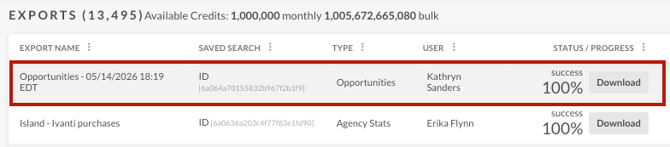
- Your export will auto-download or you can access from the Exports page