![GS Logo-GS platform.png]](https://support.govspend.com/hs-fs/hubfs/GS%20Logo-GS%20platform.png?height=25&name=GS%20Logo-GS%20platform.png)
We've enhanced your Organization and User profile within GovSpend with additional fields like products/services, competitors, and states served. Your profile will now serve to further customize your GovSpend experience, so follow the steps below to review and make updates as necessary.
Where to Find your Organization & User Profile Settings
-
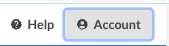
Once in GovSpend, navigate to the "Account" menu in the top right of your screen
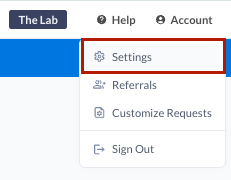
- Click "Settings" to access both user level and organization level profile and settings options
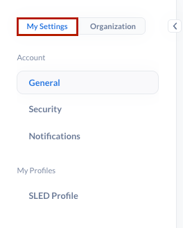
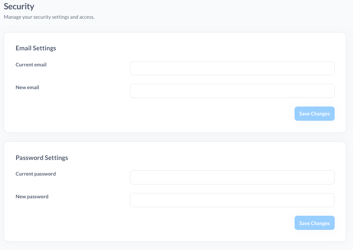
- "My Settings" includes profile and application settings specific to you as an individual user of GovSpend.
-
-
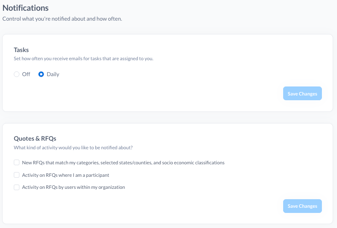
- Notifications: Manage your notifications related to tasks or Quotes. Note: Quote notifications only apply to customers actively using the Quotes module. Saved search and opportunity alert notifications are not included here (Click to learn more about Saved Search Alerts and Opportunity Alerts management).
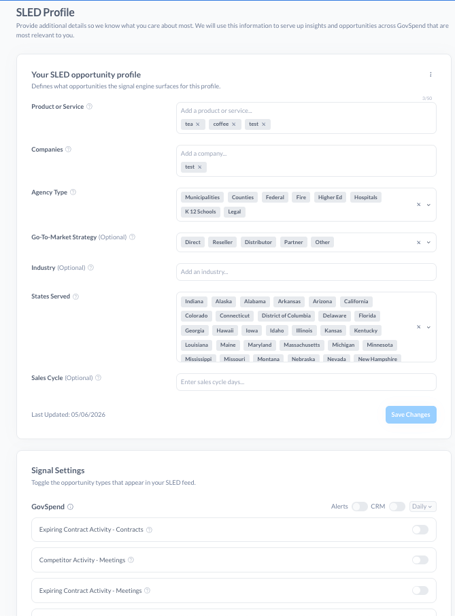
- SLED Profile: This is your more detailed user profile that specifies what you care about most. It's used to customize your GovSpend experience across our AI features and Opportunities module. See below for additional information on how to best set up your SLED profile.
-
- "Organization" includes profile and application settings for the entire Organization. Note that many items under Organization are only accessible to Admins.
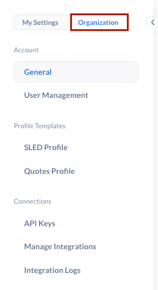
- Overview of Organization Settings:
- General: This includes basic information about your Organization, including Name, Website, Address, and Number of Employees.
- User Management: General search page for all your Organization's users. This is only visible to Account Admins.
- Billing: External billing page specifically for the Quotes module.
- SLED Profile: This includes more robust information about your Organization, its focus and its target market. The profile is originally generated by AI and can be customized by the Account Admin. All users at the Organization will inherit this profile.
- Quotes Profile: This profile is specific to the Quotes platform. If you do not use Quotes than there is no need to fill this out. Click here for more information on setting up your Quotes Profile.
- API Keys: Allows you to create and manage API keys across your organization. This is only visible to Account Admins.
- Manage Integrations: Access to all integration options within GovSpend. Note that all options are visible to everyone, but certain integrations may be locked if your Organization does not have access. Available integrations include:
- Salesforce (learn more)
- HubSpot (learn more)
- Slack - GovSpend Slack App (learn more)
- Iris (learn more)
- Zapier (learn more)
-
- Integration Logs: CRM integration logging page specific to Salesforce and Hubspot integrations. Note that this is only visible to customers who have set up and configured the CRM integration for their organization. Click here to learn more.
Managing your SLED Organization Profile
-
Select the "SLED Profile" under Profile Templates in your Organization Settings
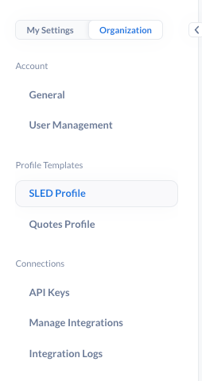
- As Account Admin, you can modify any of the fields on the General or SLED Organization Profile
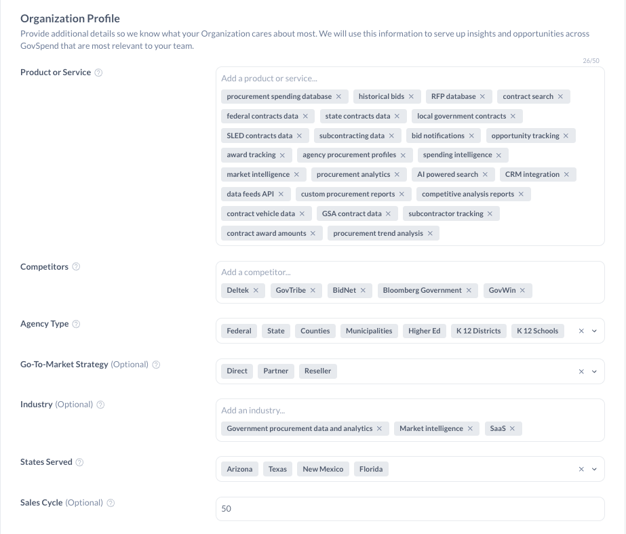
- Organization Profile: This includes more robust information about your Organization, its focus and its target market. Fields included are as follows:
- Products and Services: These are the products and services that your organization offers.
- Competitors: Your main competitors who you are interested in tracking.
- Agency Type: The typical agency types that you target when going to market.
- Go-To-Market: Indicate how your organization typically sells to the government.
- Industry: The primary industry or industries in which your organization operates.
- States Served: The states in which your organization operates, including Canadian provinces.
- Sales Cycle: Your organization's typical sales cycle.
- Organization Profile: This includes more robust information about your Organization, its focus and its target market. Fields included are as follows:
-
- Note: We've used AI to generate your initial Organization Profile using your Organization's website. This gives you a starting off point that can be further modified based on what's most relevant to your Organization.
- As Account Admin, you can review every field in your SLED Organization profile and make modifications as you see necessary.
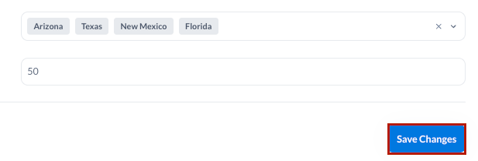
- Once your updates are complete, click "Save Changes" to update the Organization Profile.
-
- Note: Updates you make to the Organization Profile will NOT flow through to individual users after initial Onboarding.
- If you are not Account Admin, you can view your Organization's SLED profile, you just can't make modifications.
Managing your User Profile
-
Select the "My Settings" tab from the Settings page
- There are two main sections of your User profile that you can review and update:
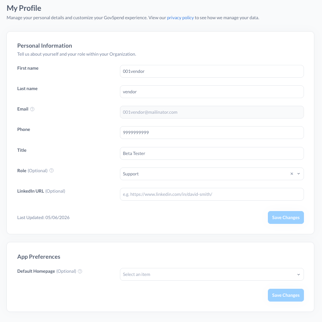
- General: This is your basic user information, including name, email, phone, and title/role. If you need to update your email, use the "Preferences" tab.
-
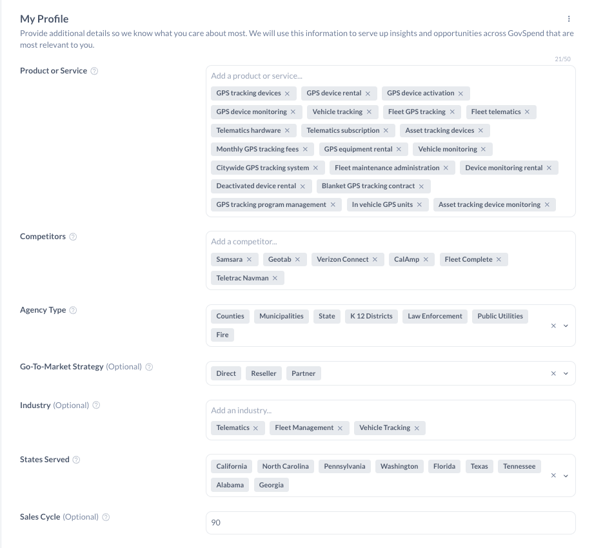
- SLED Profile: Profile Details - This is the more robust profile information that will be used to customize your GovSpend experience.
- Your initial "SLED Profile" section is populated with your Organization's SLED profile, which is generated by AI. You can make any changes or modifications to this section to ensure the profile reflects your focus as an individual GovSpend user.
- SLED Profile: Profile Details - This is the more robust profile information that will be used to customize your GovSpend experience.
-
-
- Once you've made any necessary changes to your profile, click "Save Changes"
- SLED Profile: Signal Settings - Also within your SLED profile is a section called "Signal Settings". These settings are specific to the Opportunities module, allowing you to customize what types of signals you care about as opportunities. You can also set up Opportunity email alerts and CRM integration for your opportunities. Click here for more information on setting up your signals.
-
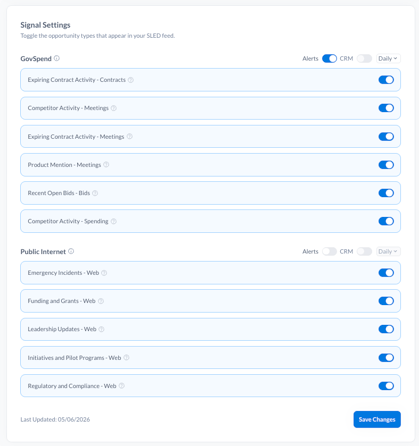
- Note that you can come in and modify your SLED profile and signal settings at any time.
How to Reset Your SLED User Profile to your Organization's SLED Profile
After initial onboarding, any updates your Account Admin makes to your Organization's profile will NOT reflect on your individual user profile. This is to ensure we don't overwrite important changes you've already made. But, you can reset your user profile to the latest Organization profile if you desire.
-
In the My Profile section of your SLED user profile, find and click the 3 dot menu
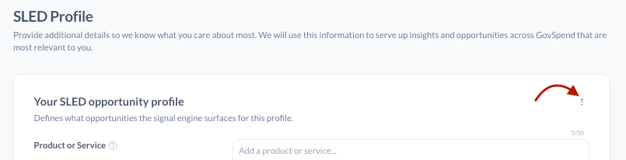
- Select "Reset Profile"
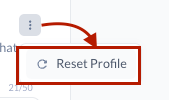
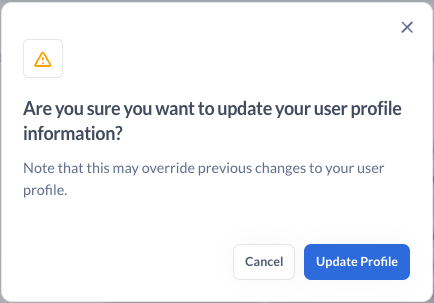
- A modal will open confirming that you want to update your user profile with your Organization's profile information.
-
- Note that this will basically copy over your current Organization's profile to your user profile and overwrite any updates you previously made to your user profile.
- If you are good to move forward with the updates, click "Update Profile"
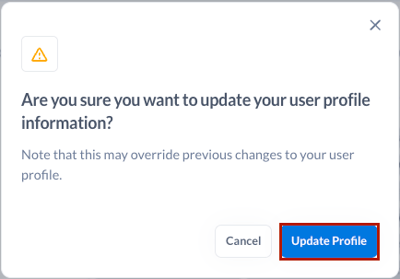
- Review and make sure that the updates look good
- Click "Save Changes" to save the updates to your user profile
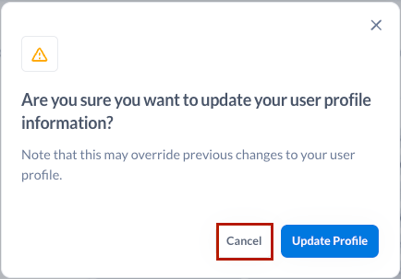
- If you prefer not to change your user profile, click "Cancel"
What is your Profile Used for?
Your individual user profile is used to customize your GovSpend experience. The main use of your profile is to drive the Opportunities module, allowing GovSpend to proactively identify relevant opportunities on your behalf. We also have the profile integrated within a couple of our AI features, including the AI chat panel in Bids/Meetings/Contracts and our Beta AI Search feature. Using your profile in combination with these features will give you more customized responses that are relevant to you.
Enhanced AI Chat Experience
Your user profile information is now used by default as context for responses generated by our AI chat in Bids, Contracts, and Meetings.
-
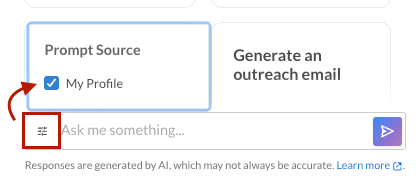
Use the menu within the chat input to toggle your profile information on or off during your chat experience
-
By default the "Profile" will be selected in order to give you more customized responses
- If you toggle "Profile" off from the main chat screen, that will persist until you toggle it on again.
- Access more customized prompts within the AI Prompt feature when your profile is in use